> ## Documentation Index
> Fetch the complete documentation index at: https://help.omnisets.com/llms.txt
> Use this file to discover all available pages before exploring further.
# Exporting
> Learn how to export flashcards from OmniSets.
You can only export if you are logged in to your account!
## Exporting as text
1. Head over to your studyset by clicking on it in the dashboard.
2. Click on the Quick Actions menu. It's the one that has three dots on it.
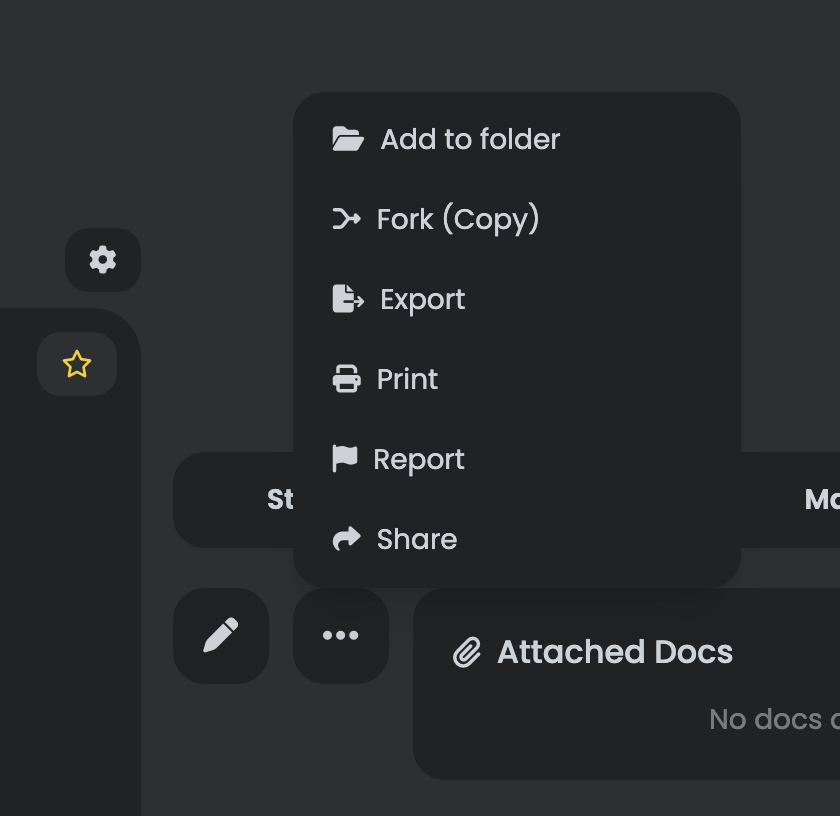 3. Choose `Export` from the list.
4. You'll then be prompted to choose a delimiter. Delimiters are characters that separate the front and back of your flashcards. They're used to split the text.
We recommend using the default delimiters (hashtags), but if you're importing from another app, you may want to change them to match the format of that app.
4. Choose your delimiters!
3. Choose `Export` from the list.
4. You'll then be prompted to choose a delimiter. Delimiters are characters that separate the front and back of your flashcards. They're used to split the text.
We recommend using the default delimiters (hashtags), but if you're importing from another app, you may want to change them to match the format of that app.
4. Choose your delimiters!
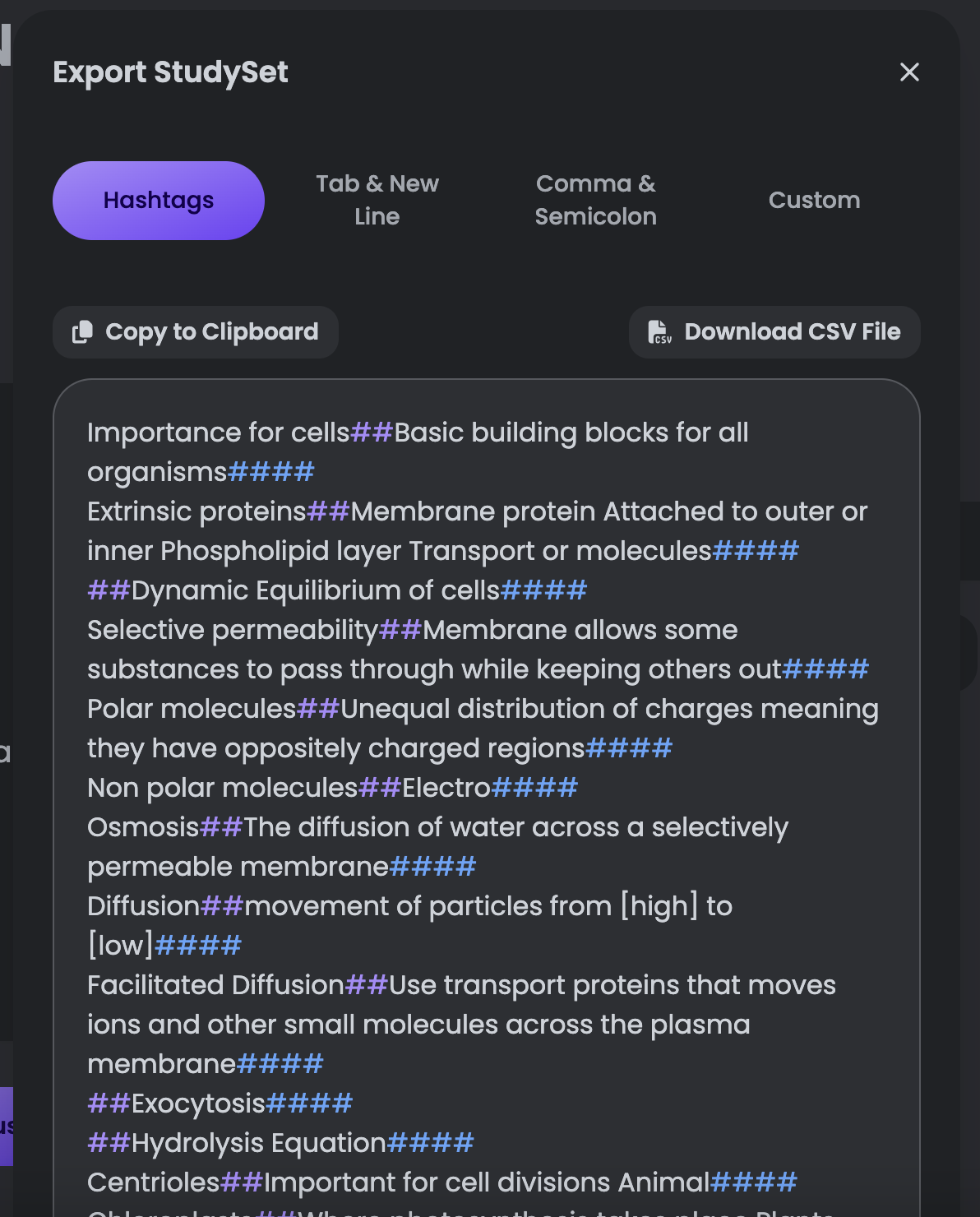 5. Select all the text in the box and copy it. Or, click the `Copy to Clipboard` button.
6. That's it! You can now paste your flashcards wherever you'd like. Including your favorite flashcard app (which is hopefully OmniSets 😉).
## Exporting as a CSV
1. Head over to your studyset by clicking on it in the dashboard.
2. Click on the Quick Actions menu. It's the one that has three dots on it.
3. Click on the `Export as CSV` button.
5. Select all the text in the box and copy it. Or, click the `Copy to Clipboard` button.
6. That's it! You can now paste your flashcards wherever you'd like. Including your favorite flashcard app (which is hopefully OmniSets 😉).
## Exporting as a CSV
1. Head over to your studyset by clicking on it in the dashboard.
2. Click on the Quick Actions menu. It's the one that has three dots on it.
3. Click on the `Export as CSV` button.
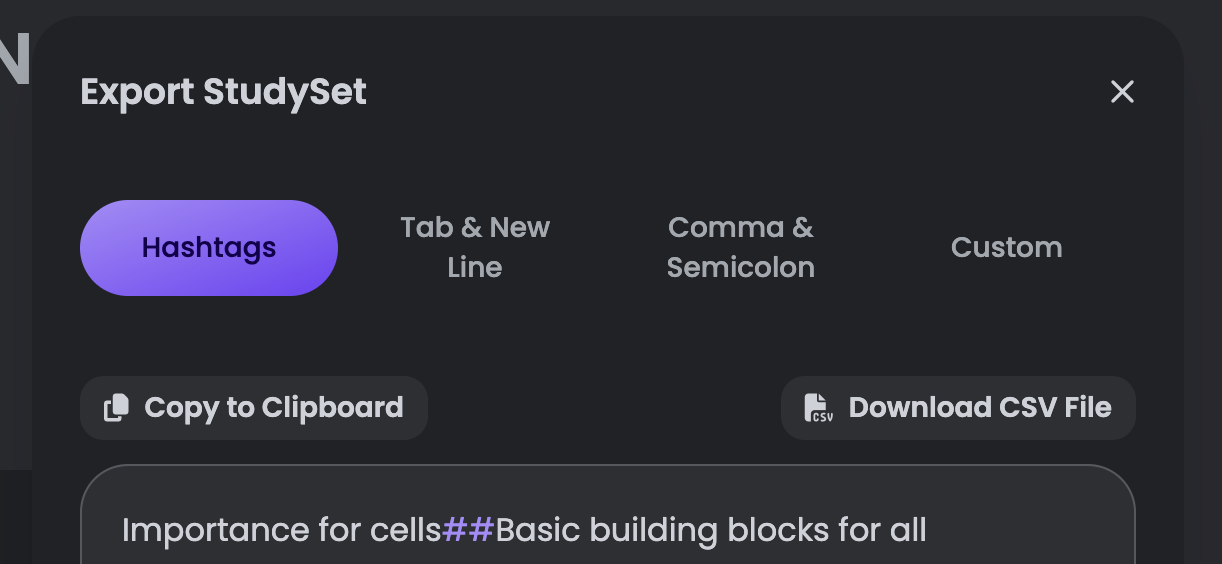 4. That's it! Your CSV file will be downloaded to your device. You can now open it in your favorite spreadsheet program (like Excel or Google Sheets).