> ## Documentation Index
> Fetch the complete documentation index at: https://help.omnisets.com/llms.txt
> Use this file to discover all available pages before exploring further.
# Importing
> Learn how to import flashcards into OmniSets to get set up quickly.
## From Quizlet
1. Go to the Quizlet deck you want to import.
2. Click on the three dots icon above the flashcards.
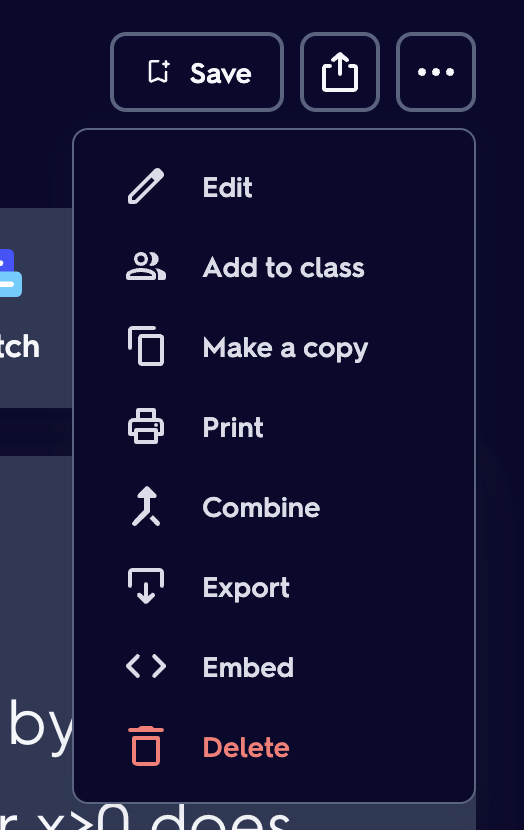 3. Select `Export`.
In the popup that opens, you can configure the export settings.
3. Change `Between the terms and definitions` to `Custom` and set the value to `##`
4. Change `Between Rows` to `Custom` and set the value to `####`.
Do not leave trailing spaces after the values! It will not work.
Here's what it should look like right now:
3. Select `Export`.
In the popup that opens, you can configure the export settings.
3. Change `Between the terms and definitions` to `Custom` and set the value to `##`
4. Change `Between Rows` to `Custom` and set the value to `####`.
Do not leave trailing spaces after the values! It will not work.
Here's what it should look like right now:
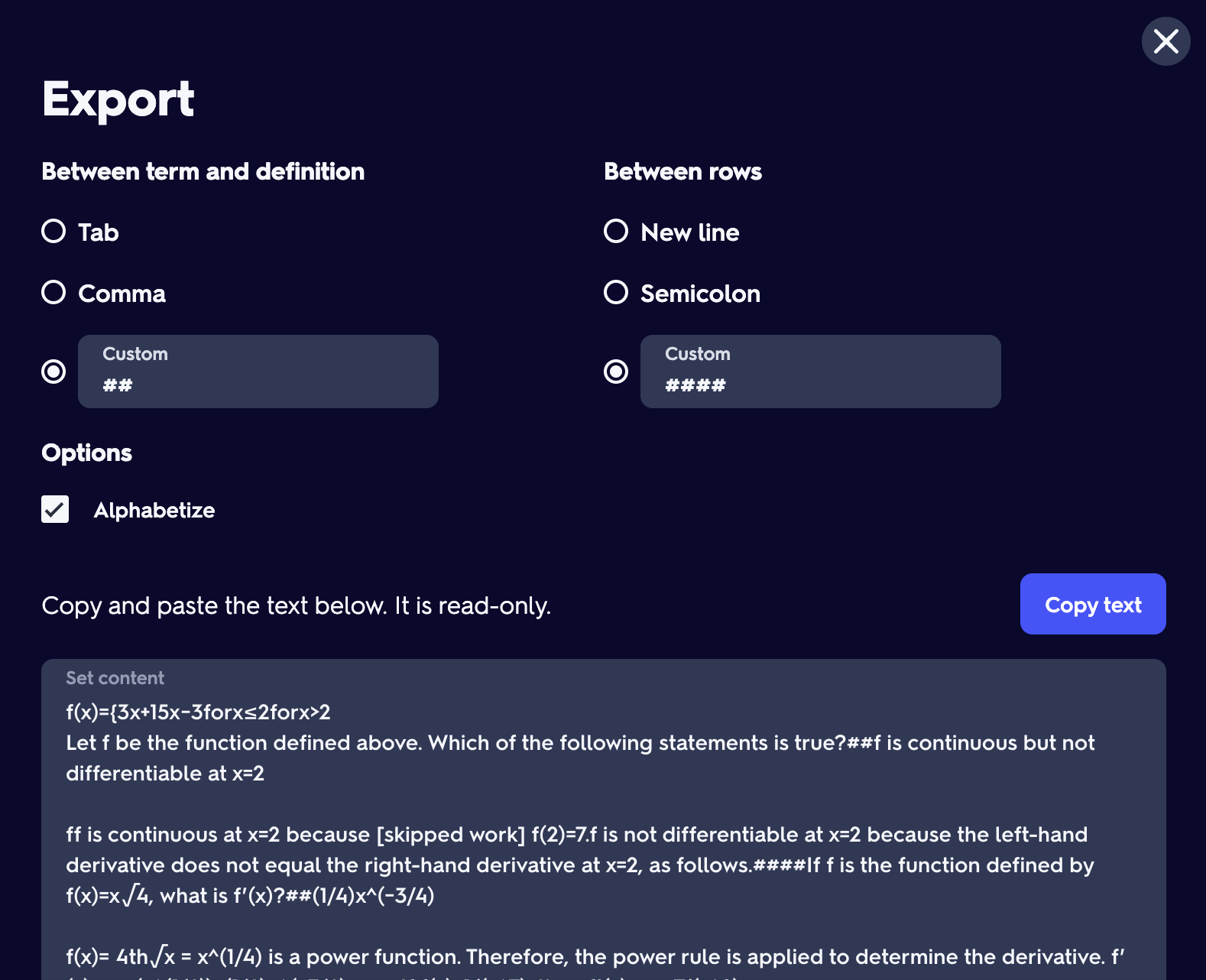 5. Copy the text and head over to OmniSets.
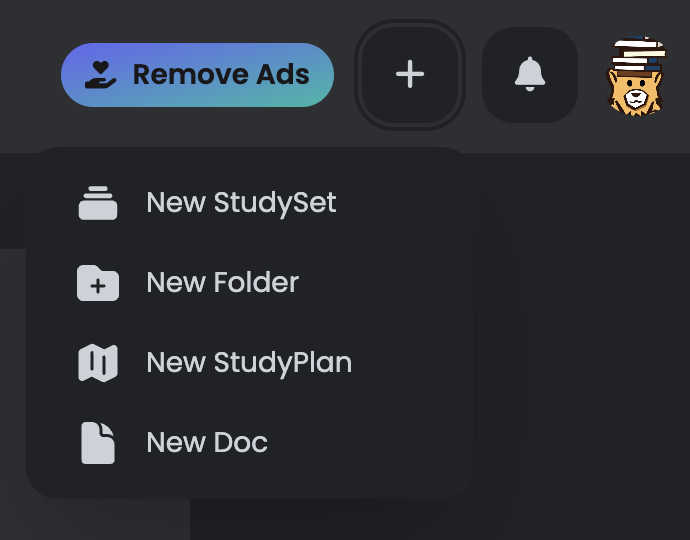
6. Tap on the `+` in the top right.
5. Copy the text and head over to OmniSets.
6. Tap on the `+` in the top right.
 7. Select `New StudySet`
 8. Hit `Import flashcards`
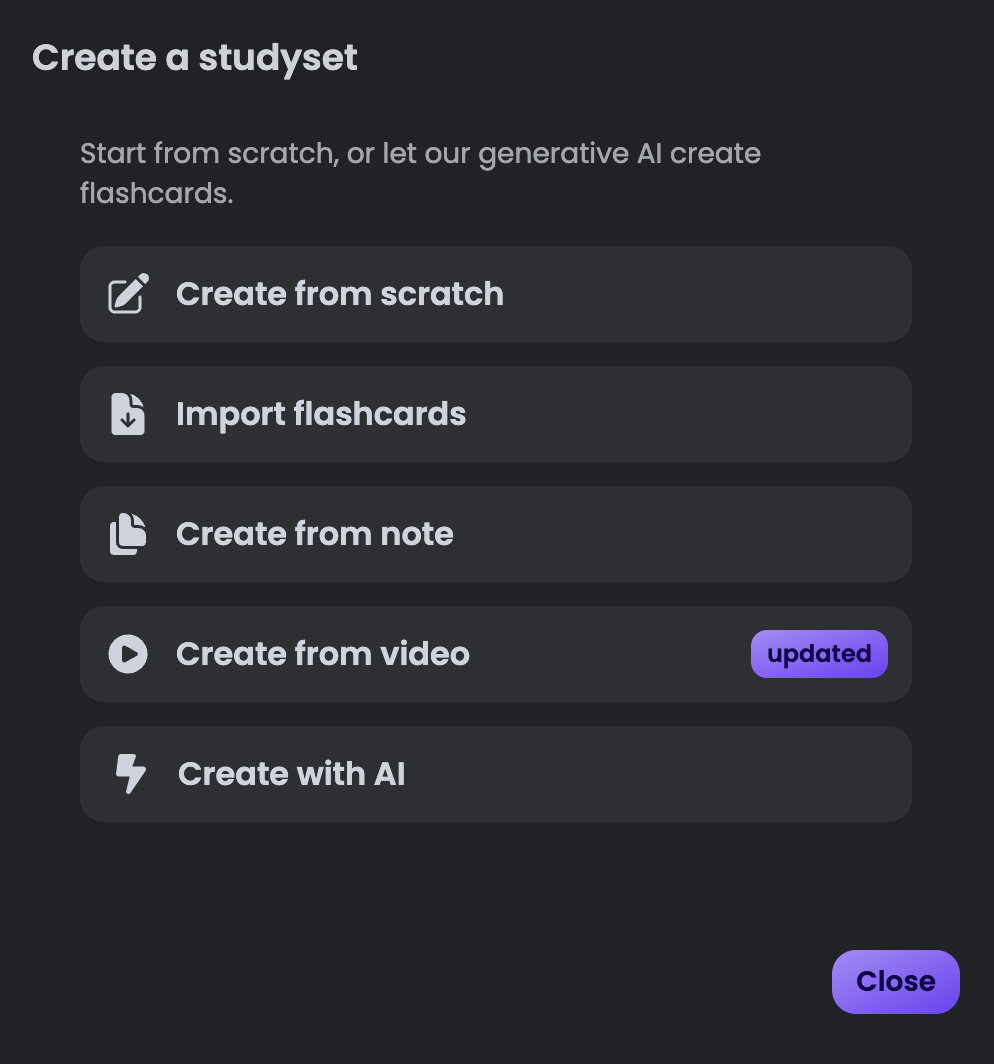 9. You will now be redirected to the card editor where a popup will appear.
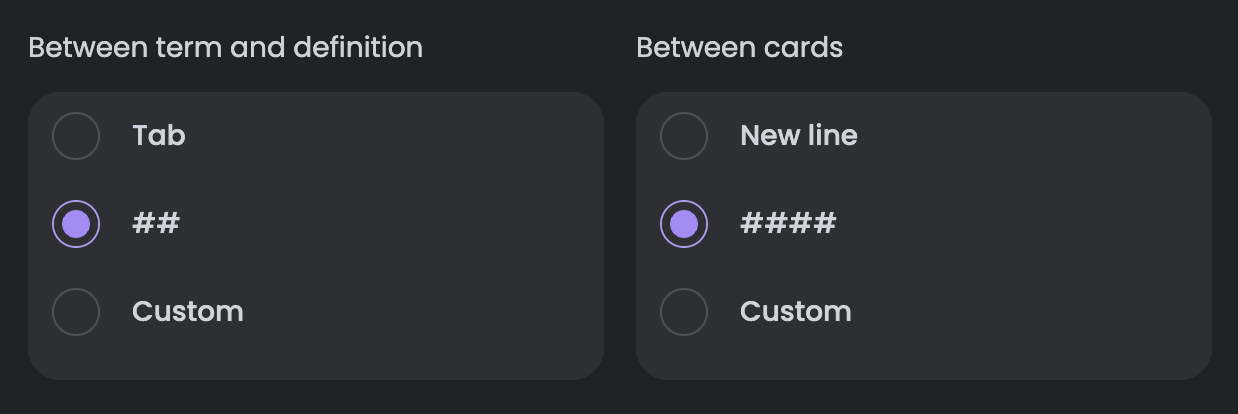
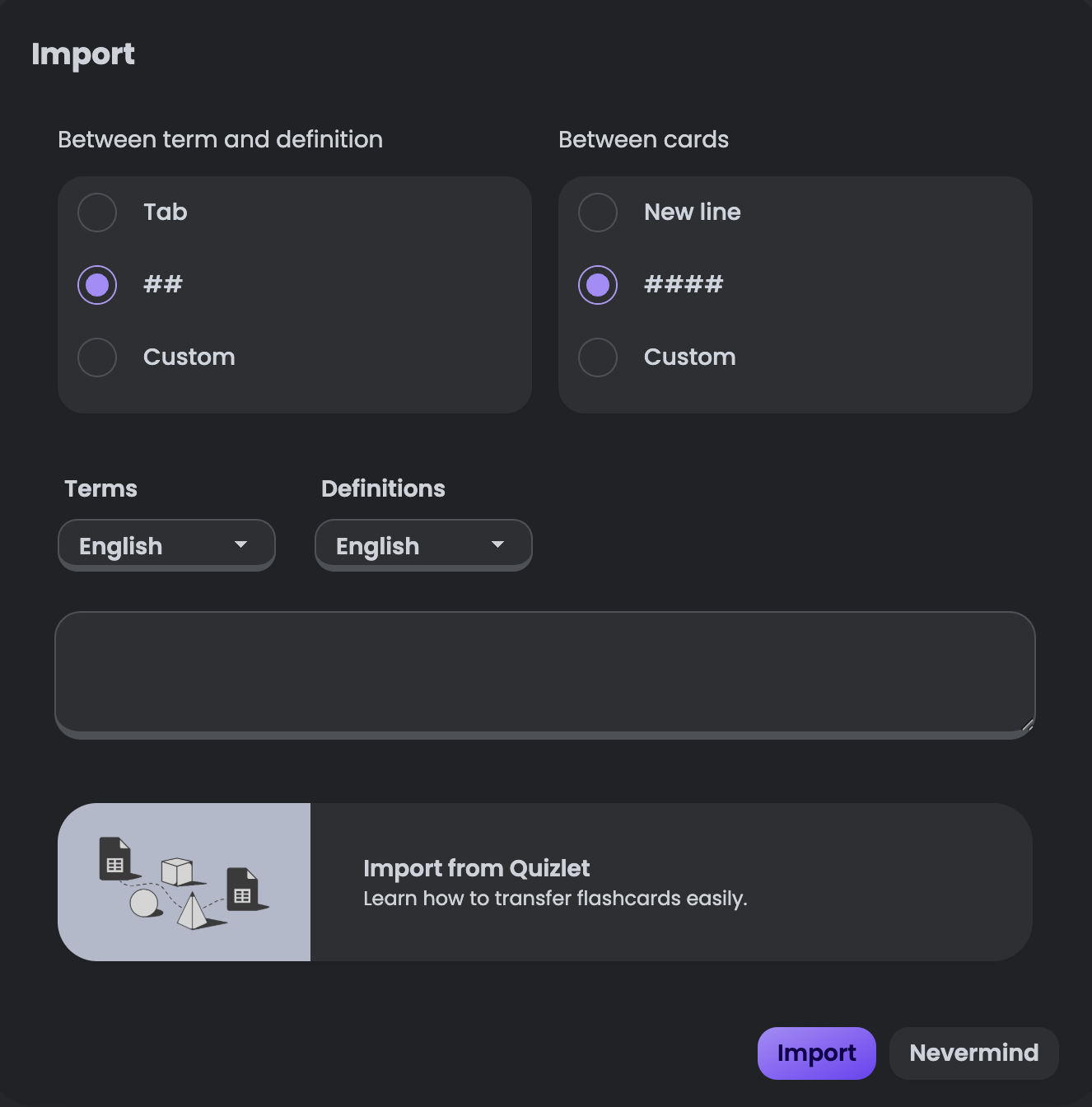 10. Select the same separators you used in Quizlet. If you've been following closely, there should be `##` for `Between term and definition` and `####` for `Between Rows` as options to select.
 11. Paste the text you copied from Quizlet into the popup and click Import.