> ## Documentation Index
> Fetch the complete documentation index at: https://help.omnisets.com/llms.txt
> Use this file to discover all available pages before exploring further.
# Quiz Mode
> Learn how to use Quiz Mode on OmniSets.
Quiz Mode is a mode that allows you to test your knowledge on the studyset. You can choose between multiple choice, written responses, and true or false questions. You can also set the number of questions you want to answer. It’s basically like a practice test!
### Starting a Quiz Session
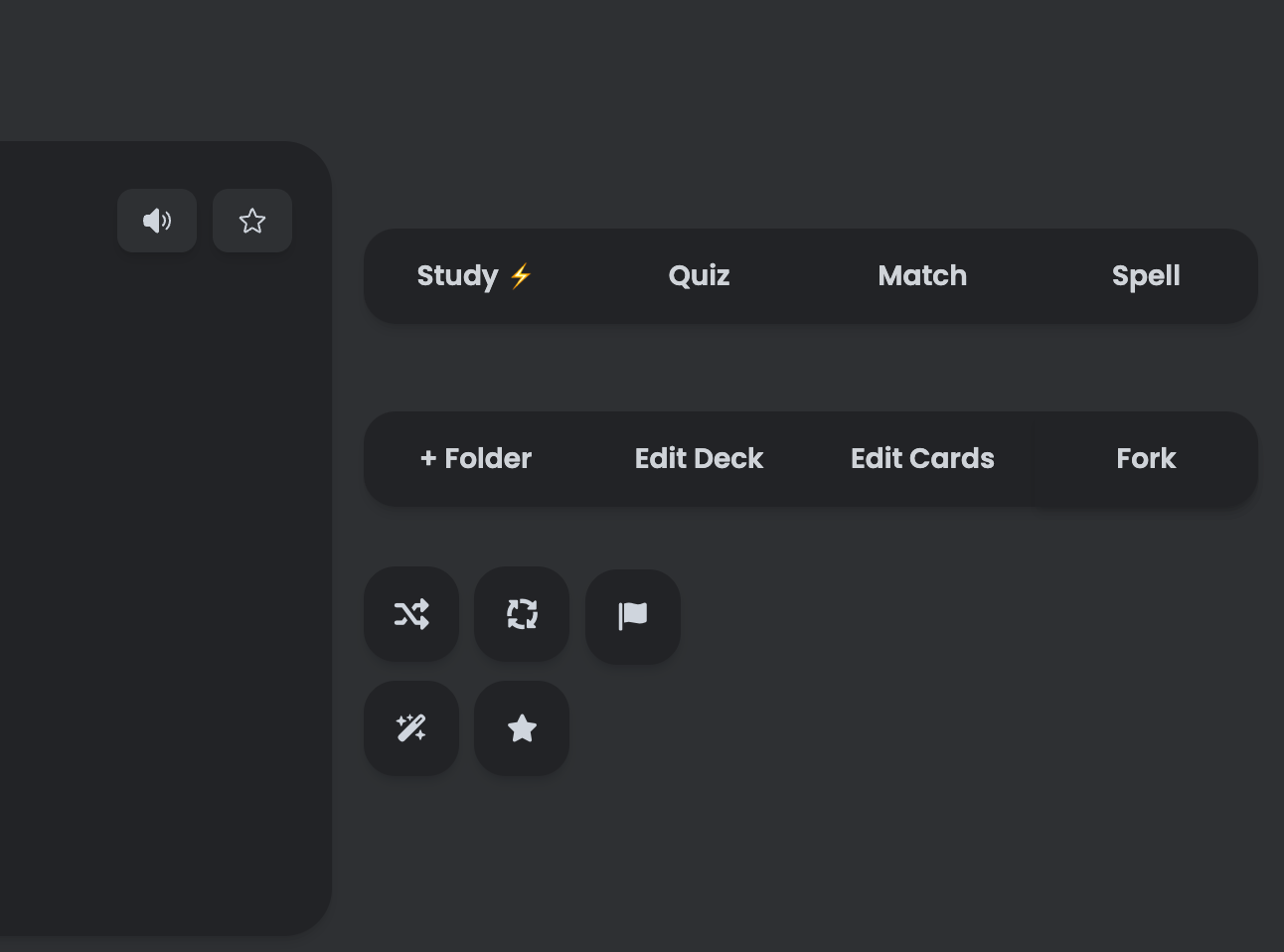 Right next to the Study mode and the other modes is the Quiz mode. This section is located on the right side of the page. Tap on the button marked `Quiz`.
### Initial Settings and Options
Right next to the Study mode and the other modes is the Quiz mode. This section is located on the right side of the page. Tap on the button marked `Quiz`.
### Initial Settings and Options
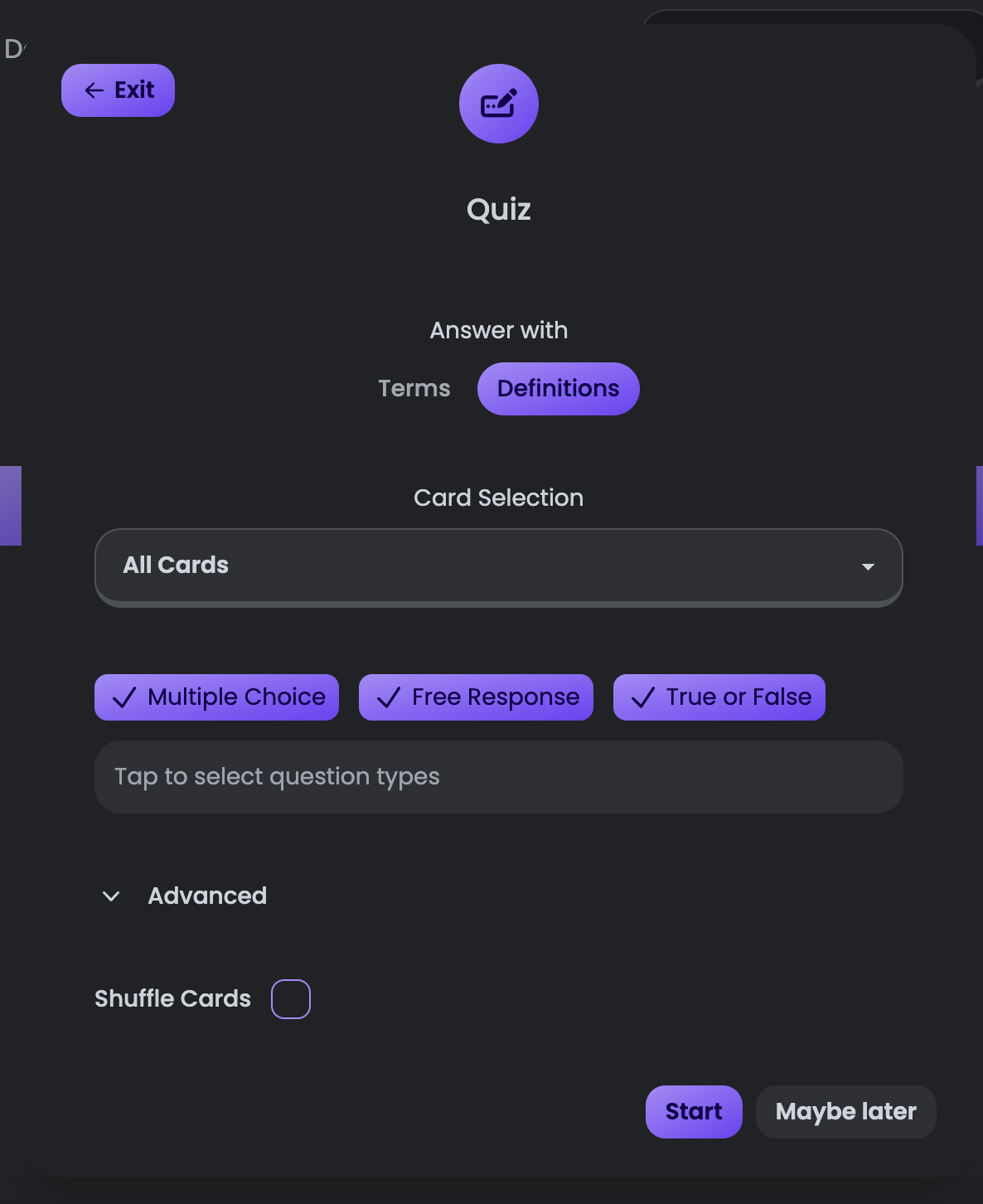 Here, you can choose the settings you'd like for the quiz. All of these settings are similar to the other modes. Visit the [Study Mode](/guides/study-mode) guide for more information on these settings.
### Taking the Quiz
Here, you can choose the settings you'd like for the quiz. All of these settings are similar to the other modes. Visit the [Study Mode](/guides/study-mode) guide for more information on these settings.
### Taking the Quiz
 This means that your question was saved and you can move on to the next one.
 This means that the system is waiting for you to answer the question.
**Multiple Choice Questions (worth 3 points)**
Here, you'll be presented with 4 choices, and one of them will be the right answer.
**Free Response Questions (worth 5 points)**
In these questions, you'll need to answer the prompt as closely as you can to the actual flashcard.
**True or False Questions (worth 2 points)**
It's pretty self-explanatory, but you will receive a term and a definition. Answer whether you think they match or not.
### Saved Notes
This means that the system is waiting for you to answer the question.
**Multiple Choice Questions (worth 3 points)**
Here, you'll be presented with 4 choices, and one of them will be the right answer.
**Free Response Questions (worth 5 points)**
In these questions, you'll need to answer the prompt as closely as you can to the actual flashcard.
**True or False Questions (worth 2 points)**
It's pretty self-explanatory, but you will receive a term and a definition. Answer whether you think they match or not.
### Saved Notes
 Tapping on it will reveal a sidebar, which you can use to jot down notes or remember important information. However, it won't be saved, so just keep that in mind.
### How grading works
**Multiple Choice Questions**
Grading is exact, and there is no "room for error" as these are the exact options.
**True or False Questions**
These work exactly like multiple choice; there is only one correct option.
**Free Response Questions**
As these questions are more open-ended, ideally, there should be room for error. And there is! Free Response questions are graded by AI and it will determine whether you were correct or not. As always, AI is not perfect and can make some mistakes sometimes, so if that happens, let us know right then and there using the support chat in the bottom left.
### Studying Missed Cards
Any cards that were marked incorrect are noted as "Missed." This means that when you click this button to head to the Study mode, you'll only be reviewing those cards, nothing else.
Tapping on it will reveal a sidebar, which you can use to jot down notes or remember important information. However, it won't be saved, so just keep that in mind.
### How grading works
**Multiple Choice Questions**
Grading is exact, and there is no "room for error" as these are the exact options.
**True or False Questions**
These work exactly like multiple choice; there is only one correct option.
**Free Response Questions**
As these questions are more open-ended, ideally, there should be room for error. And there is! Free Response questions are graded by AI and it will determine whether you were correct or not. As always, AI is not perfect and can make some mistakes sometimes, so if that happens, let us know right then and there using the support chat in the bottom left.
### Studying Missed Cards
Any cards that were marked incorrect are noted as "Missed." This means that when you click this button to head to the Study mode, you'll only be reviewing those cards, nothing else.