> ## Documentation Index
> Fetch the complete documentation index at: https://help.omnisets.com/llms.txt
> Use this file to discover all available pages before exploring further.
# Quickstart
> In this walkthrough, you'll be able to go through the entirety of OmniSets and understand the ins and outs of everything.
## Creating your first StudySet
The first thing you'll want to do is create a StudySet. A StudySet is a collection of flashcards that you can study. You can create a StudySet by clicking on the `Create StudySet` button on the top right of the page.
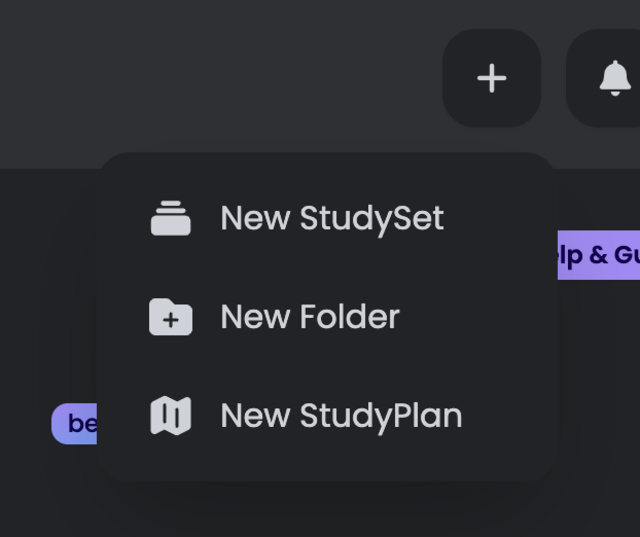 We'll only cover StudySets in this guide for now, but you can also create StudyPlans and Folders.
If you click the `New StudySet` button, you should see a modal that looks like this:
We'll only cover StudySets in this guide for now, but you can also create StudyPlans and Folders.
If you click the `New StudySet` button, you should see a modal that looks like this:
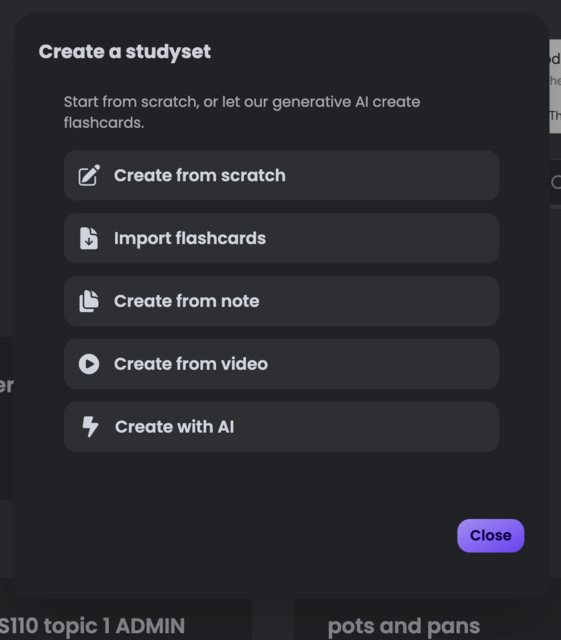 For now, hit `Create from scratch`. You should now be seeing a page that looks like this:
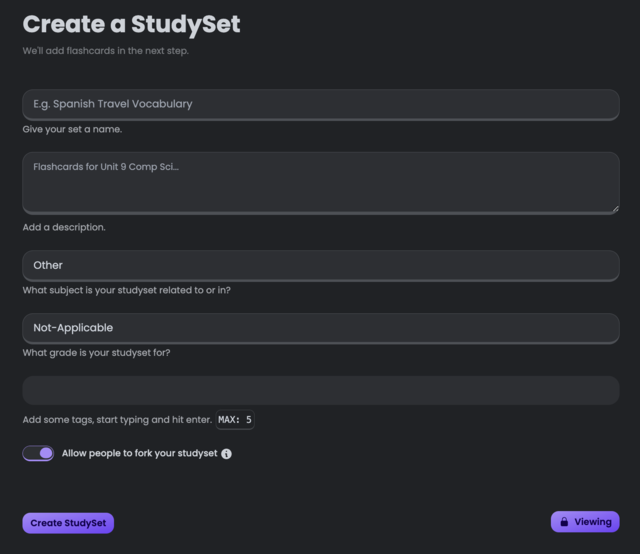 Add whatever tags you'd like, such as `AP`, `Biology`, `Chemistry`, etc. You can also add a description if you'd like.
Forking allows you or others (if the studyset is public) to create a copy of the studyset. This is useful if you want to make a copy of a studyset and make changes to it without affecting the original studyset.
Once you're done, hit `Create Set` and you should be redirected to the card editor.
## Adding Cards
On this page, you can add flashcards to your studyset. You can add a card by clicking on the `Add` button on the bottom right of the page.
Learn more about formatting and creating cards [here](/guides/creating-flashcards).
Add whatever tags you'd like, such as `AP`, `Biology`, `Chemistry`, etc. You can also add a description if you'd like.
Forking allows you or others (if the studyset is public) to create a copy of the studyset. This is useful if you want to make a copy of a studyset and make changes to it without affecting the original studyset.
Once you're done, hit `Create Set` and you should be redirected to the card editor.
## Adding Cards
On this page, you can add flashcards to your studyset. You can add a card by clicking on the `Add` button on the bottom right of the page.
Learn more about formatting and creating cards [here](/guides/creating-flashcards).
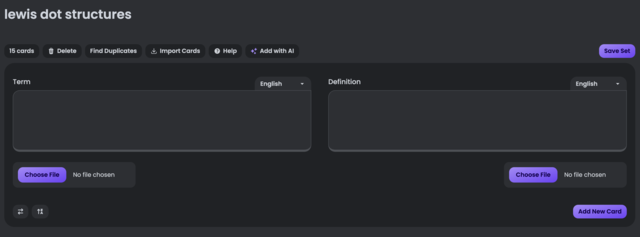 Once you're done, hit `Save and Exit` and you should be redirected to the studyset page.
## Studying
Now that you've created a studyset, you can study it by clicking on the `Study` button on the top right of the page.
Once you're done, hit `Save and Exit` and you should be redirected to the studyset page.
## Studying
Now that you've created a studyset, you can study it by clicking on the `Study` button on the top right of the page.
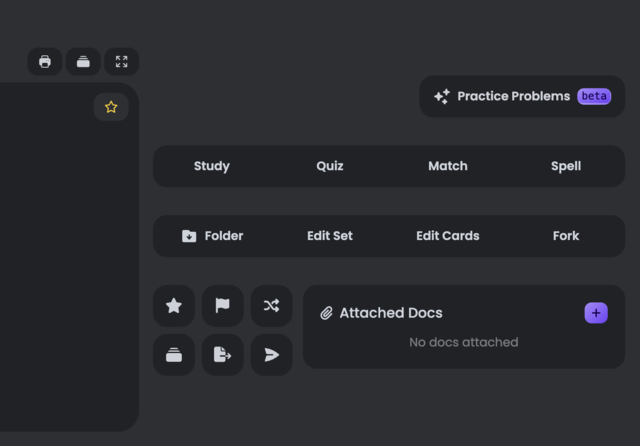 Learn more about the StudySet page and the Study mode [here](/guides/studyset-page) and [here](/guides/study-mode).